
Module 4
Chat handles the big moves. Sometimes the change you need isn't that big.
Sometimes it's a vocabulary word that doesn't match your school's curriculum. A sentence you want to rewrite. A question you'd rather swap out. For those, you don't need Chat at all — you can edit directly.
These are the small adjustments you've always made to keep learning feeling consistent and personal for your students. Diffit's manual editing tools make sure you don't have to give that up.
What you can customize in Diffit:
Text formatting — Click into your resource and a formatting toolbar appears. Adjust text, bold vocabulary words, size up your headings, even add emojis as visual cues.
Tables — Swap colors, adjust borders, add or remove rows and columns.
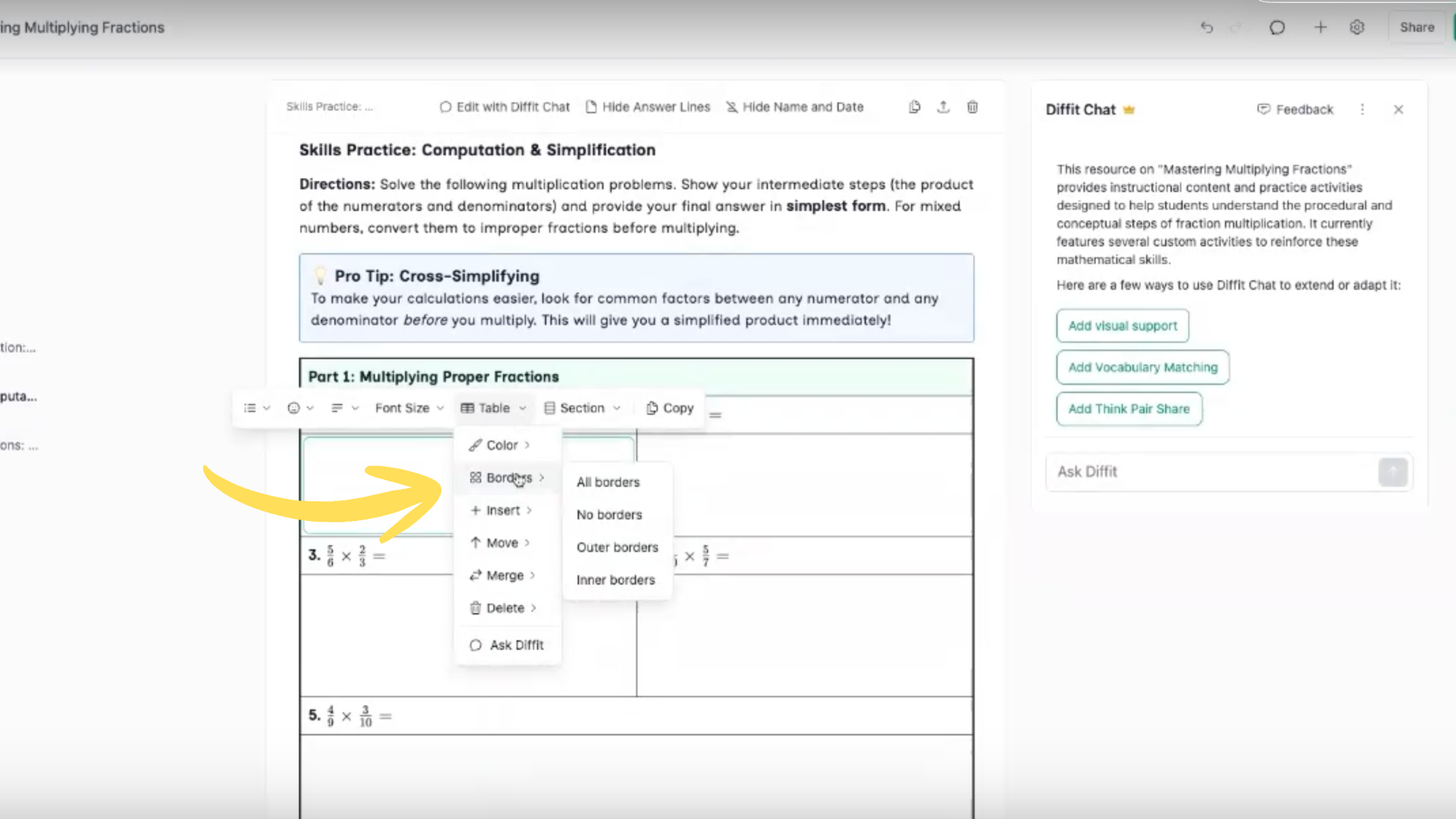
Structure — Add entire sections and activity types, adjust student response space, and more.
Try It
Back to Chat, in context — If you're unsure or want something custom, the toolbar gives you a direct path into Diffit Chat. When you open Chat from the toolbar, it understands you're editing that specific section of the activity.
Open the resource you've been building and try three small moves:
Make one direct edit to the text
Add an activity
Adjust some formatting
Then head to Module 5 for sharing and exporting.