
Module 5
Diffit makes it easy to get your resources where they need to go.
You've generated a resource, refined it with Chat, and made the edits that make it yours. Now it's time to send it where it needs to go — to your students, the colleague down the hall, or into your own library in Diffit or your Google Drive. Diffit gives you a few ways to do that, and the right one depends on how you plan to use it.
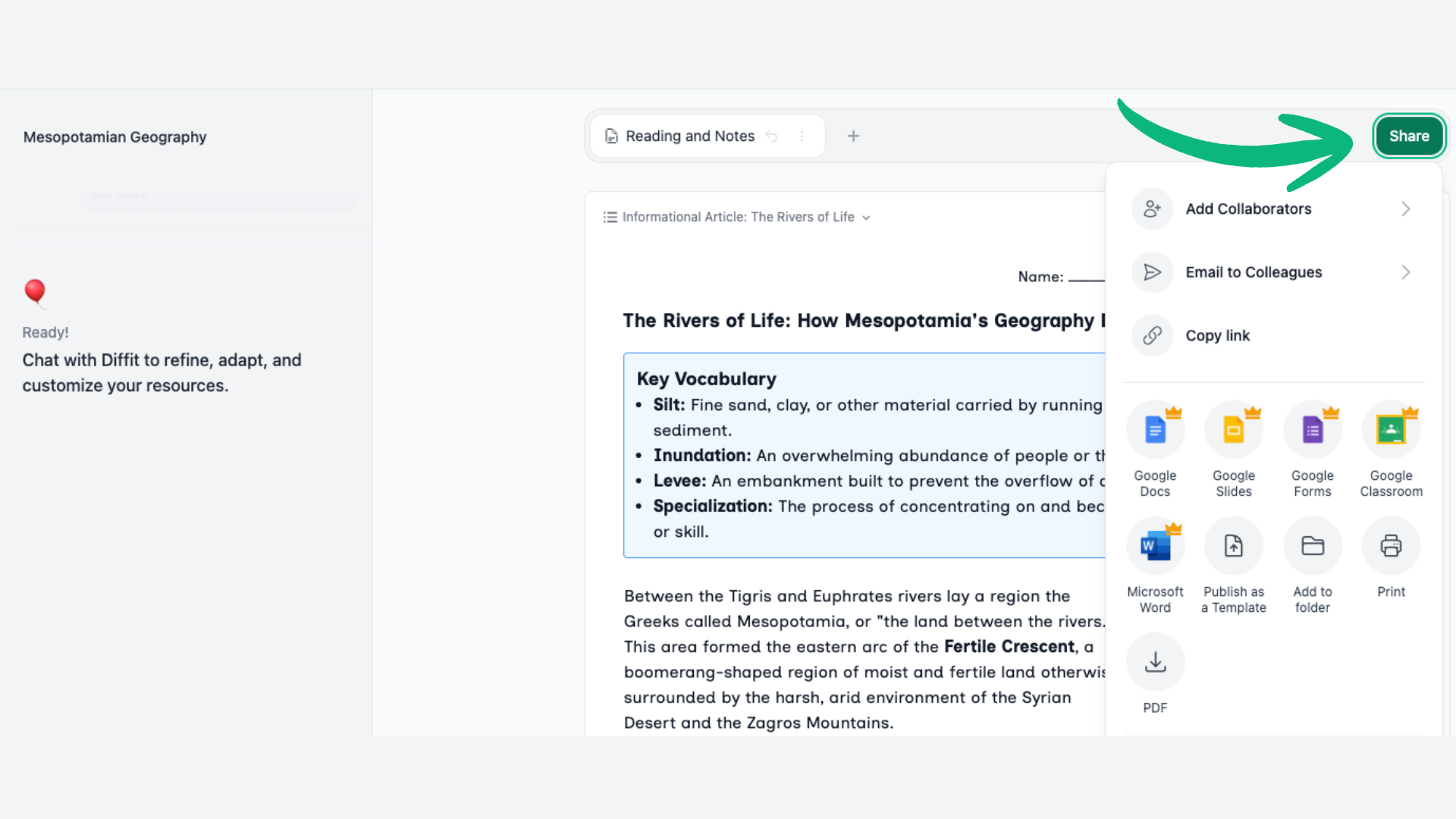
Export — Click the green button in the top corner. You'll see options for Google Docs, Google Classroom, and Microsoft Word, or you can download and print the PDF.
Your share options:
Share directly — Add your colleagues' emails to share the resource with them.
Publish as a template — This generates a shareable page you can link anywhere, including your own Google Drive. You — and anyone you share it with — can adapt and regenerate that same lesson with different content or different accommodations, right from that page.
BONUS: Organize — Your resources save to your library automatically. Add them to an existing or new folder through the same export menu. Find and create folders in My Resources, where you can also share them with colleagues.
-
Welcome back. Now that you've generated a resource, refined it with Chat, and made some of the edits that make it yours, you're ready to send it where it needs to go. Maybe to your students, maybe to your colleague down the hall, or just to your own library — in Diffit or elsewhere in your Google Drive.
Diffit gives you a few different ways to do any of that, and the right one depends on how you're planning to use the resource.
Click the green button at the top corner. You'll see options to export to Google Docs, Google Classroom, or Microsoft Word. Or you can download and print the PDF version.
You can share directly with your colleagues by adding their emails.
And one of my favorites is the option to publish your lesson as a template. This generates a shareable page that you can link and share anywhere, including in your own Google Drive. You, or anyone you share it with, can then adapt and regenerate the same lesson with different content or different accommodations from right there.
One last tip. Your resources are always saved automatically to your library, but you can organize them at any time by adding them to an existing or new folder through the same export menu. You can find and create folders in My Resources, where you can also share them with your colleagues.
Let's pause here and try some of the export options. Don't think too hard about it. Pick one or maybe two that fit how you might actually use or share the resource you've been working on. Open it on the other side, or grab it from the printer, and take a look. That's the version your students or your colleagues are going to see.
Come back to our final module when you're ready.
Try It
Try one or two export options — whichever fit how you'd actually use or share this resource. Don't overthink it.
Then open it on the other side, or grab it from the printer, and take a look. That's the version your students or colleagues are going to see. Come back for the final module when you're ready.Try one or two export options — whichever fit how you'd actually use or share this resource. Don't overthink it.
Then open it on the other side, or grab it from the printer, and take a look. That's the version your students or colleagues are going to see. Come back for the final module when you're ready.