
Module 3
AI-powered editing, driven by pedagogy and what you know your students need.
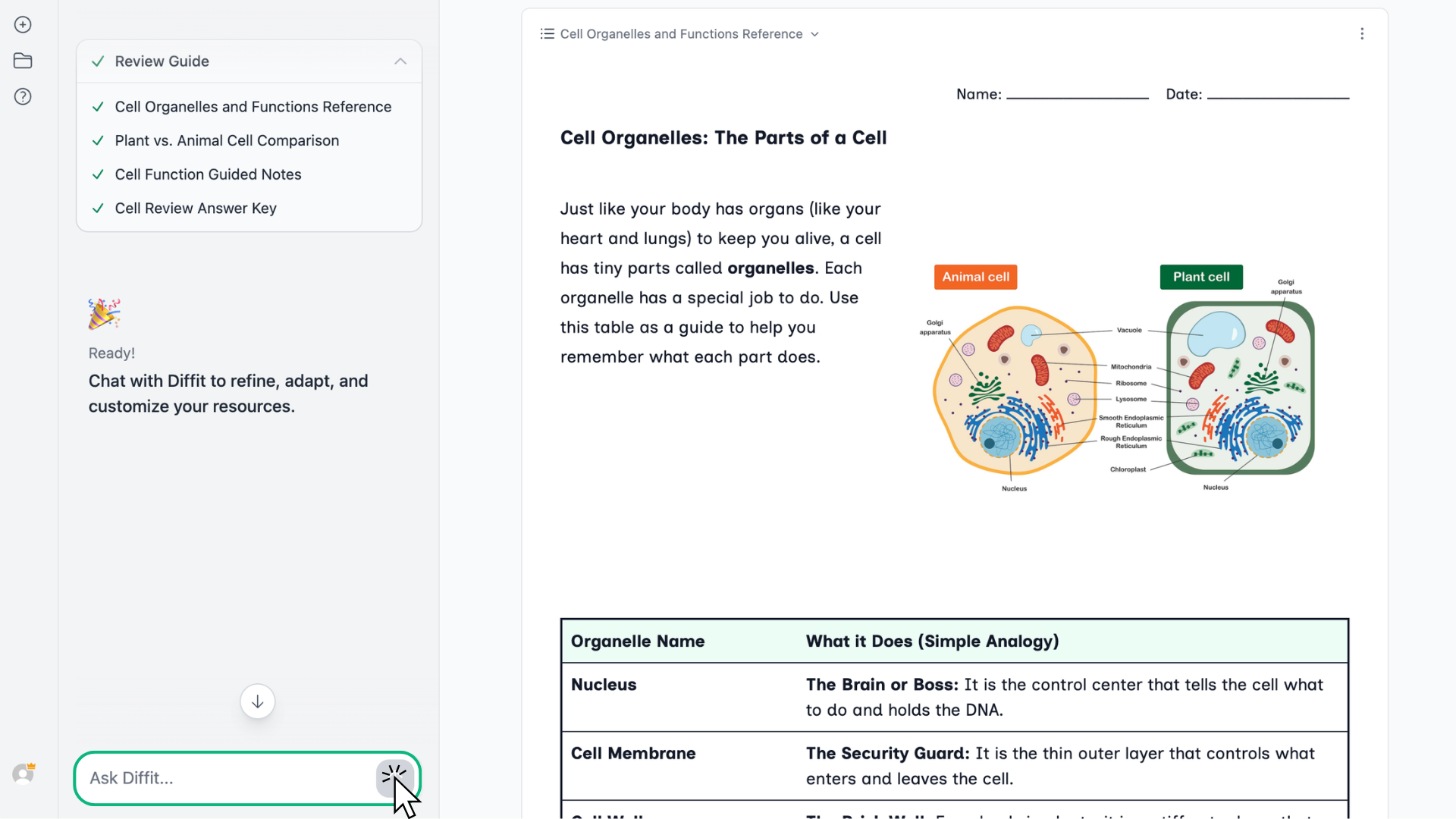
Diffit Chat is an AI assistant that sits on top of any resource you've generated. Instead of regenerating from scratch when something's off, you ask Chat to refine what's already there. It updates the resource you're already working in.
Be specific. "Make this easier" is vague. "Add sentence stems to the comprehension questions" tells Chat exactly what to change and where.
Key tips for using Diffit Chat:
Iterate. If the first response isn't right, tell Chat what to adjust. You don't have to start over — keep refining until it works.
Treat it like a trusted co-teacher. Work together, explore, and see where you end up.
Name your audience when it matters. "Lower the reading level for my 8th graders reading at a 5th grade level" works better than "lower the reading level."
-
Welcome back. If you created something in Module 2, you might have noticed it wasn't perfect. Maybe the reading level was a little high for your group. Maybe the activity wasn't quite what you had in mind. Maybe you wanted sentence stems for your multilingual learners and they weren't there.
That's all fine, because Diffit is built to help, not replace. You know your classroom, and you will always know those last couple of edits that will make your materials exactly what they need to be. That's where Diffit Chat comes in.
Diffit Chat is an AI tool that sits on top of any resource you've generated. Instead of starting over when something isn't quite right, you just ask Chat to refine what's already there. Chat can lower the reading level, translate the resource, add sentence stems, build in a graphic organizer. Whatever you ask for, Chat is going to update the resource you're already working with.
Here's what that looks like in practice. I've got a resource on the water cycle generated for fifth graders. Let's say I want to use this with a small group of striving readers, and I want to add sentence stems for my multilingual learners. I just type that into Chat — plain language, the same way you'd describe what you need to a colleague — and the resource updates.
That's the core move. But Chat can do a lot more than reading level changes. You can add scaffolds and supports. You can add extension activities, vocabulary practice, and answer keys. You can reformat and reorganize an entire project or lesson sequence. You can completely change a lesson from direct instruction to small group practice or station rotations, and it all comes from Chat.
A quick word on prompting, because that's where teachers either click with Chat or get frustrated.
It helps to be specific. "Make this easier" is vague, but "add sentence stems to the comprehension questions" tells Chat exactly what to change and where.
Name your audience when it matters. "Lower the reading level for my eighth graders reading at a fifth grade level" works better than just "lower the reading level."
And iterate. If the first response isn't quite right, tell Chat what to adjust. You don't have to start over — just keep refining until it works for you.
I feel like the best approach is to chat like you would with a co-teacher you trust. Work together, iterate, explore, and see where you end up. If you're ever not sure where to start, Diffit Chat has preset prompt options built in and tailored to your resource. Tap one and edit it from there.
One of my favorite things about Chat is the way it'll explain pedagogical moves and help you understand what it's doing, and what you're doing with the lesson. It makes me a better teacher.
Let's pause here and try using Chat with the resource you generated in the last module. Pick one thing to change. Maybe it's the reading level, a scaffold you wish was there, an activity that could be a little more challenging. Ask what you should change based on a student you have. If the first response isn't quite what you wanted, go ahead and send a follow-up. See how it feels to iterate.
Take your time and chat normally. In the next module, we'll look at some of the manual edits and small adjustments you can make after, or sometimes without ever opening Chat.
Try It
Open the resource you generated in Module 2 and pick one thing to change. Maybe it's the reading level, a scaffold you wish were there, or an activity that could be more challenging. Try asking Chat what you should change based on a specific student you have.
If the first response isn't what you wanted, send a follow-up. See how it feels to iterate. Take your time and chat normally — then head to Module 4 for the manual edits.